中文 English
You are here: Tutorials > Cyclone Separator > Setting up the model > Defining Physics and Conditions

Defining Physics and Conditions

The physics and conditions are specified as follows.

Add Modules
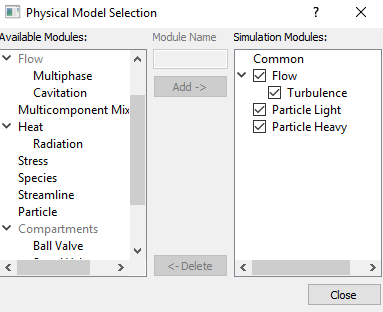
  1. Click Select Modules in the Model Panel. The Physical Model Selection dialog box opens.
  2. Select Turbulence under Available Modules list and click Add.
  3. Select Particle under Available Modules list, enter Module Name as Light and click Add.
  4. Select Particle under Available Modules list, enter Module Name as Heavy and click Add.
  5. Click Close to close the Physical Model Selection dialog box.
 

Figure 11.7 - Adding modules


  Note: If the same physical module is being added multiple times into the Simulation Panel, it is mandatory to enter the name of the additional module. After giving the additional module name under Module Name, it will add as a suffix to the default name of the module .


Light Particles
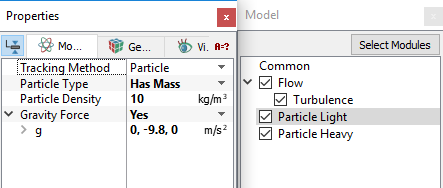
  1. Select Particle Light in the Model Panel.
  2. Select Has Mass for Particle Type drop-down list in the Properties Panel.
  3. Enter 10 for Particle Density.
  4. Select Yes for Gravity Force drop-down list.
 

Figure 11.8 - Light particle properties


Heavy Particles
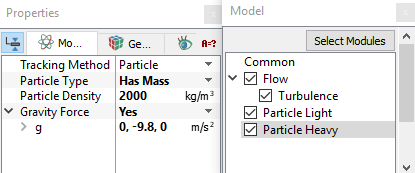
  1. Select Particle Heavy in the Model Panel.
  2. Select Has Mass for Particle Type drop-down list.
  3. Enter 2000 for Particle Density.
  4. Select Yes for Gravity Force drop-down list.
 

Figure 11.9 - Heavy particle properties


Volume Properties
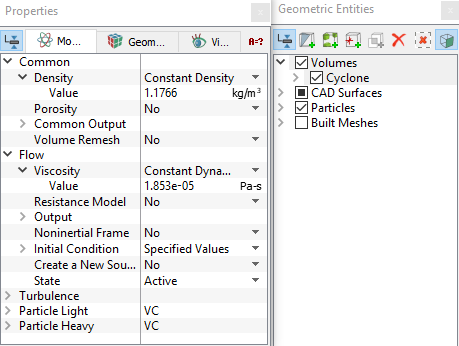
  1. Select the Volumes in the Geometric Entities Panel.
  2. In the Common > Density drop-down list of Model Tab of Properties Panel, verify that the Value is 1.1766 kg/m3.
  3. In the Flow > Viscosity drop-down list, verify that the Value is 1.853e-5 Pa-s.
 

Figure 11.10 - Properties for air

Boundary conditions

The boundary conditions for Air under Volumes are specified as follows:

Cyclone Inlet
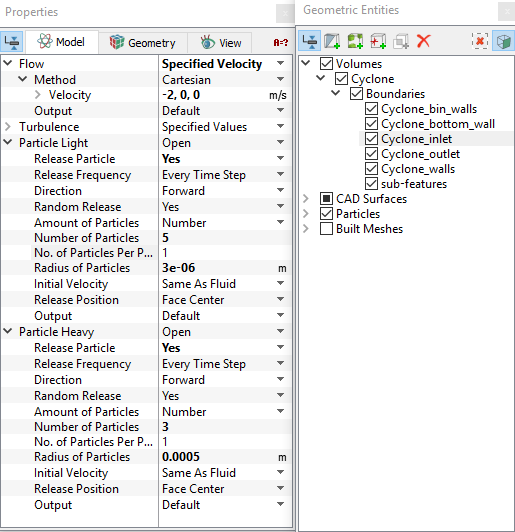
  1. Select Cyclone_inlet from the Boundaries list in the Geometric Entities Panel.
  2. Select Specified Velocity from the Flow drop-down list in the Model Tab of Properties Panel.
  3. Enter -2, 0, 0 m/s for Velocity under Flow.
  4. Select Yes for Release Particle drop-down list under Particle Light list.
  5. Enter 5 for Number of Particles.
  6. Enter 3e-06 m for Radius of Particles.
  7. Select Yes for Release Particle drop-down list under Particle Heavy list.

  8. Enter 3 for Number of Particles.
  9. Enter 0.0005 m for Radius of Particles.
 

Figure 11.11 - Inlet conditions


Outlet
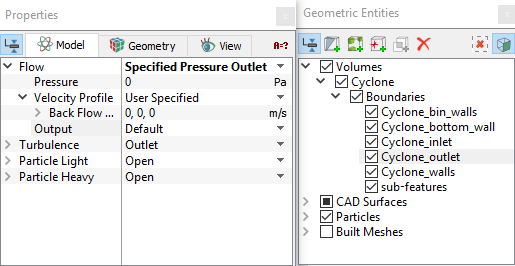
  1. Select Cyclone_outlet from the Boundaries list in the Geometric Entities Panel.
  2. Select Specified Pressure Outlet from the Flow drop-down list in the Model Tab of Properties Panel.
 

Figure 11.12 - Outlet conditions

Walls
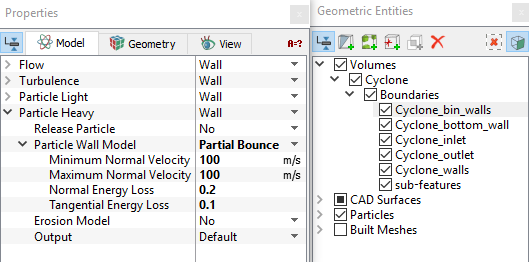
  1. Select Cyclone_bin_walls from the Boundaries list in the Geometric Entities Panel.
  2. Specify Partial Bounce for the Particle Wall Model drop-down list under Particle Heavy list.
  3. In the Particle Wall Model list, specify the following parameters:
    1. Set Minimum Normal Velocity to 100.
    2. Set Maximum Normal Velocity to 100.
    3. Set Normal Energy Loss to 0.2.
    4. Set Tangential Energy Loss to 0.1.
  4. Select Cyclone_bottom_wall from the Boundaries list in the Geometric Entities Panel.
  5. Specify Stick for the Particle Wall Model drop-down list under Particle Heavy list.


Figure 11.13 - Wall condition


Copyright © 2023 Simerics Inc.,